Screenshot cleanup

Remove Text from a Screenshot

Clear names, messages or labels from a screenshot while keeping its interface structure recognizable.

UI-aware
Keep panels, bubbles and dividers
Selective
Target names, messages or labels
Not redaction
Use secure tools for confidential data
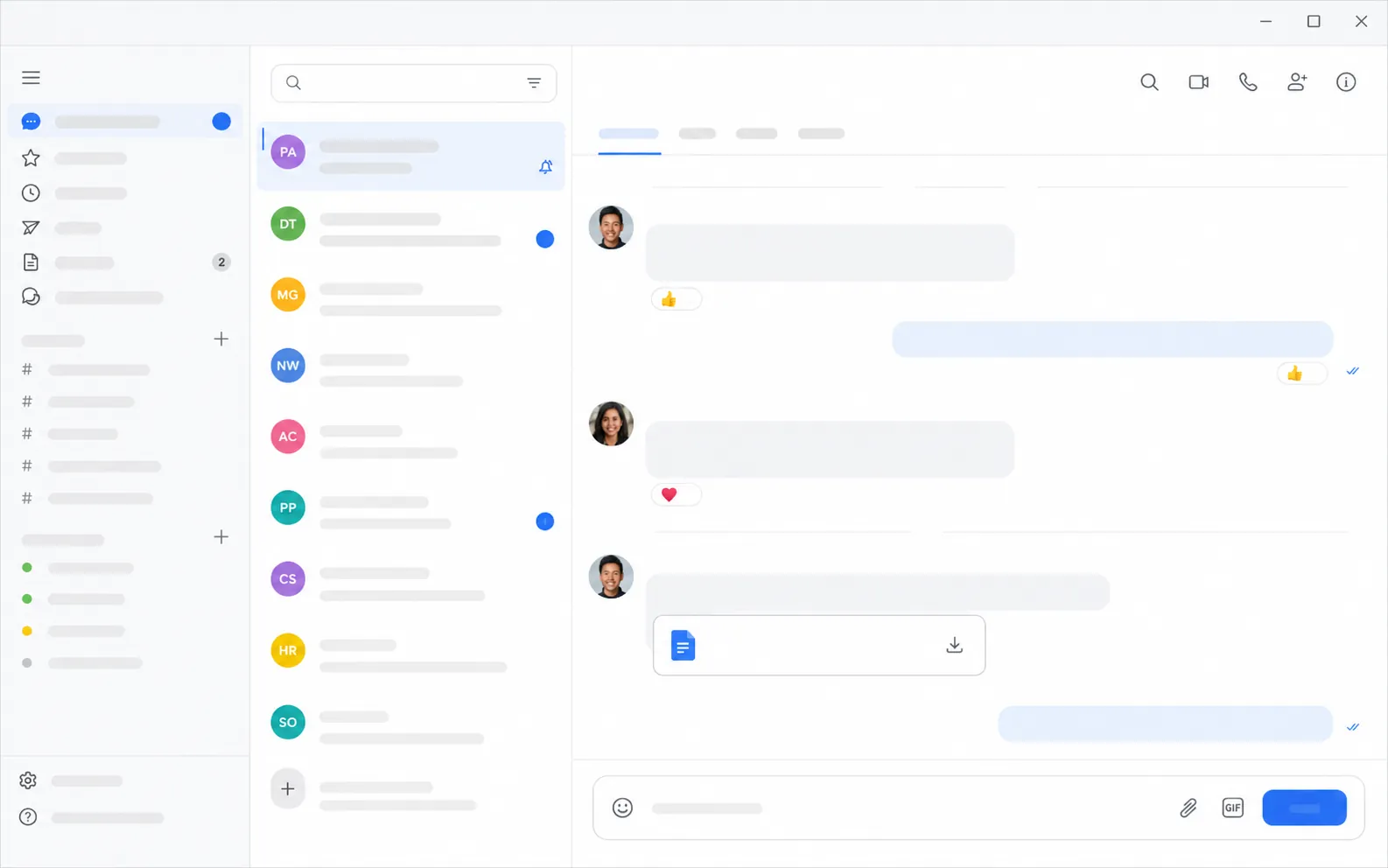
Team chat screenshot with readable text removed and interface shapes preserved
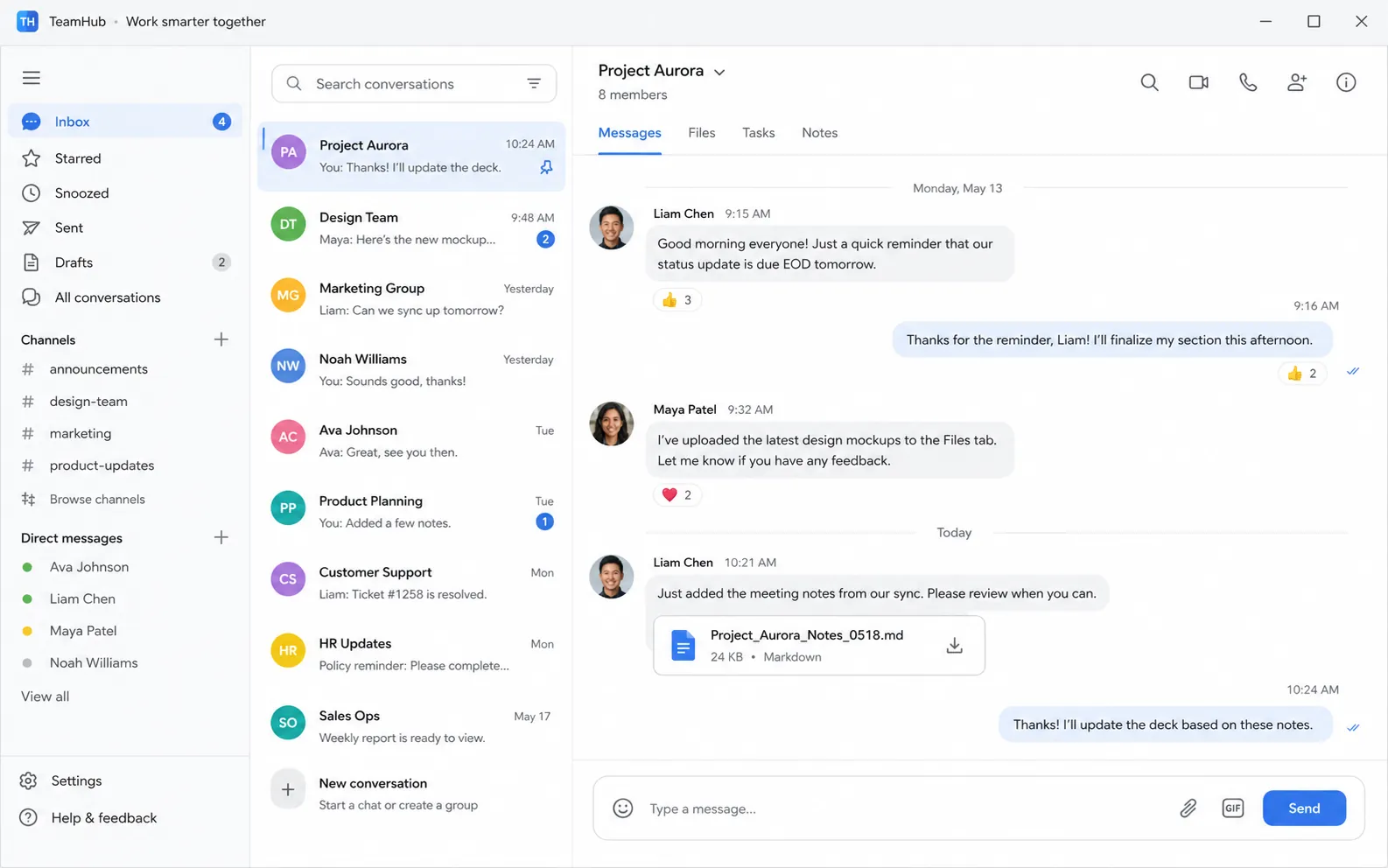
Team chat screenshot with names, messages and interface labels
OriginalText removed
Quick answer

Upload the screenshot and identify the text areas to remove. AI can replace names, messages and labels with visually consistent interface surfaces. It is not a secure redaction method: use irreversible redaction for confidential data and verify the final file before sharing.

Try it on your image

Upload, remove and review

Upload JPG, PNG or WebP files. Add a short instruction when only selected text should be removed.

Upload Images

Drag and drop images here, or click to choose files.

JPG, JPEG, PNG or WebP · Up to 20 MB each · Up to 10 images per batch

Step by step

A clean result starts with a clear target

  1. 01

    Decide whether cleanup or redaction is needed

    Use cleanup for presentation visuals. Use a secure redaction workflow for passwords, personal data or confidential records.

  2. 02

    Upload and list target areas

    Identify names, messages, channel labels or buttons and say which icons or UI text should stay.

  3. 03

    Verify every readable region

    Inspect the full screenshot at 100 percent and confirm that no sensitive text remains before sharing.

Screenshot cleanup is different from secure redaction

A clean screenshot can be useful for mockups, tutorials and marketing visuals where readable sample copy is distracting. The goal is a believable interface without the selected words.

For confidential information, cover or delete the data with a purpose-built redaction process and flatten the result. Visual AI cleanup is not a guarantee that sensitive data is unrecoverable from other files, layers or metadata.

Protect interface structure

Screenshots contain many straight lines, small icons, repeated rows and aligned controls. A location-based prompt should distinguish text from the interface elements that need to remain.

Check dividers, avatar edges, message bubbles and active-state colors after the edit. Removing every word may be useful for a neutral mockup, while a tutorial may require only names and message content to disappear.

FAQ

Questions about this workflow

Can I remove names and messages from a screenshot?+

Yes. Identify those regions and preserve avatars, icons, panels and message-bubble shapes in the instruction.

Is AI text removal safe for redacting private data?+

Do not rely on it as a secure redaction method. Use irreversible redaction and verify the flattened output for confidential information.

Can I keep some interface labels?+

Yes. Specify which labels should remain and target other text by panel, row or position.

Will small icons be removed with the text?+

They should be preserved when clearly separated, but inspect the full-size result and use a more precise instruction when icons sit directly beside the words.

AI image cleanup

Clean the words from your own image

Upload a supported image, target all text or selected words and review the reconstructed background.

Upload an image