PNG image cleanup

Remove Text from PNG

Clean logos, graphics, screenshots and exported designs without first converting the PNG to JPG.

PNG direct
No JPG conversion required
Lossless source
Keep crisp edges for processing
Alpha check
Review transparency after output
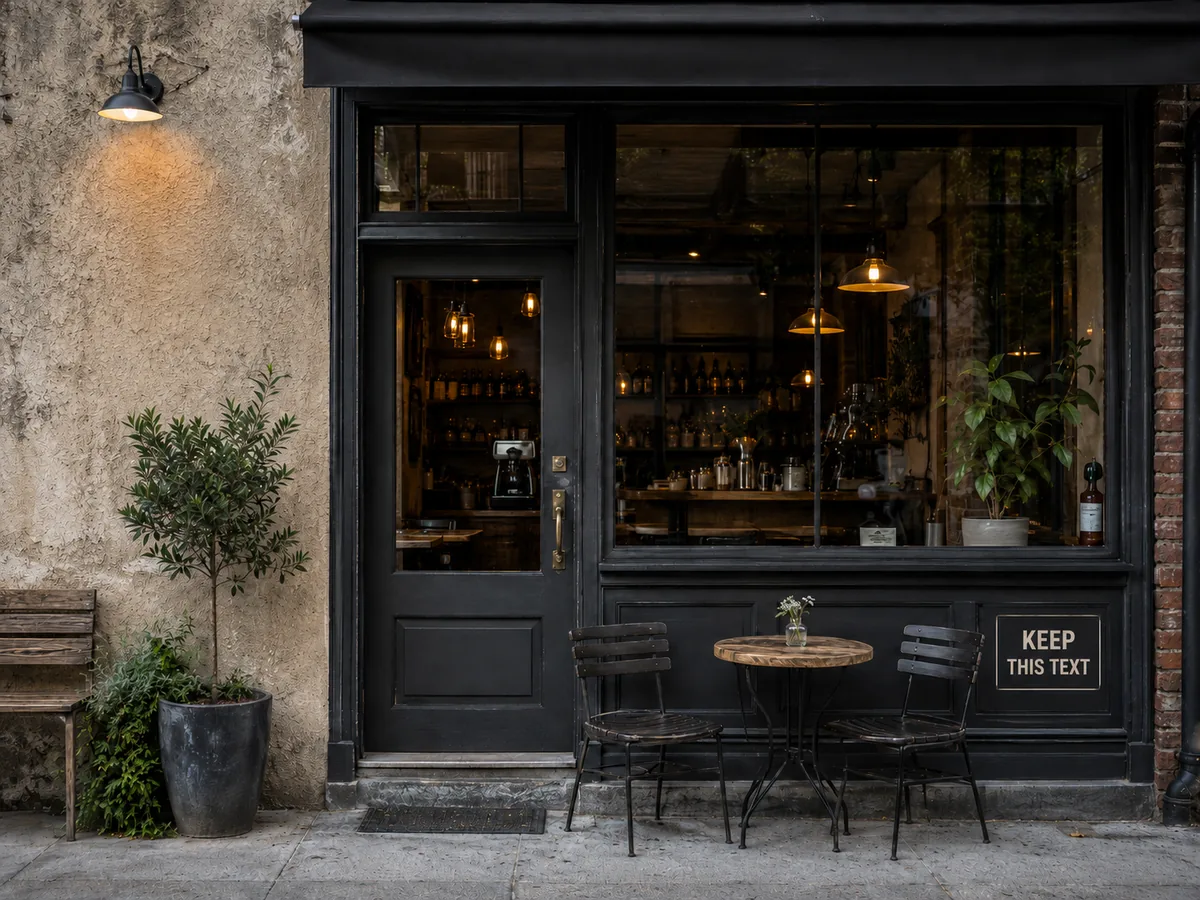
Storefront graphic after only the requested text was removed
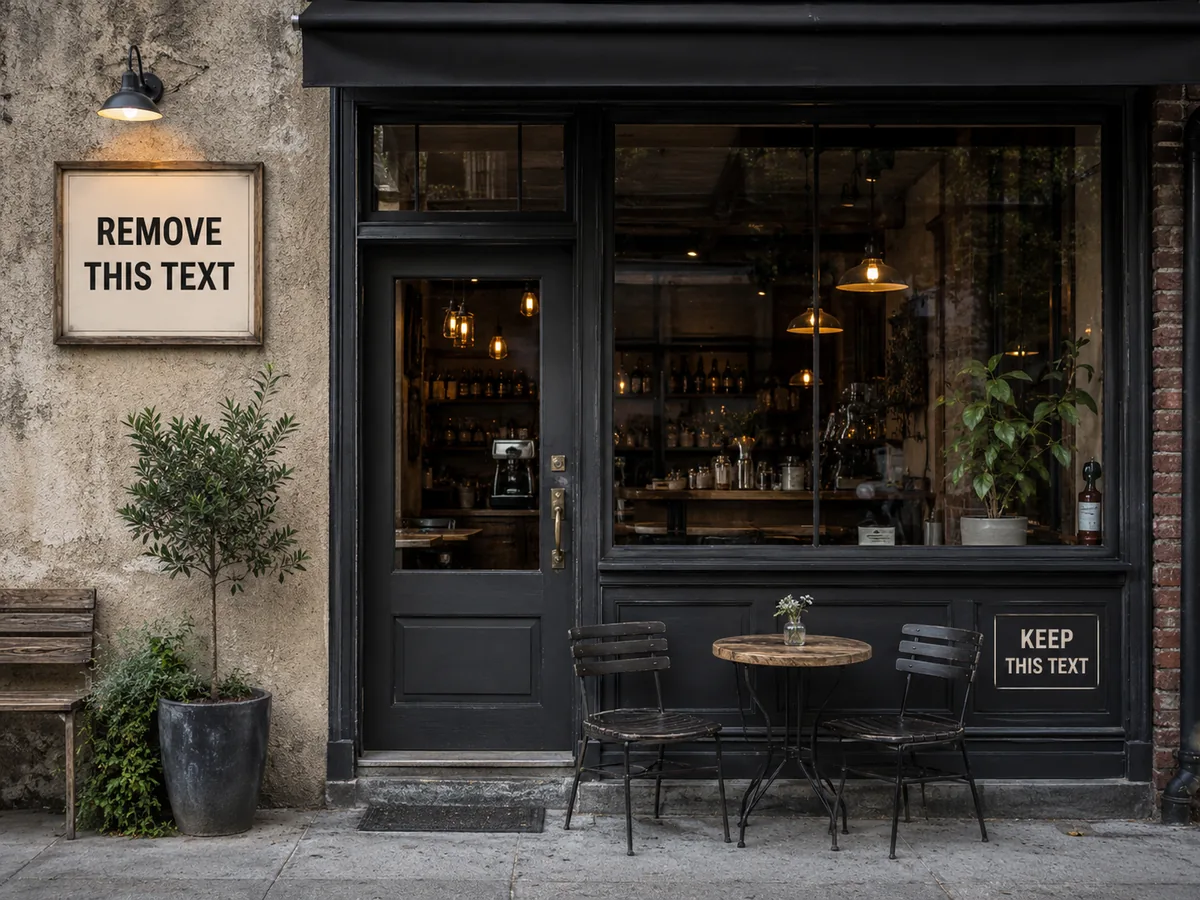
Storefront graphic with selected sign text before removal
OriginalText removed
Quick answer

Upload the PNG directly, select all text or describe a specific area, then review the reconstructed background. A flattened PNG may still contain transparency, but visible words are pixels rather than editable type. Check transparent edges after downloading if the source uses an alpha channel.

Try it on your image

Upload, remove and review

Upload JPG, PNG or WebP files. Add a short instruction when only selected text should be removed.

Upload Images

Drag and drop images here, or click to choose files.

JPG, JPEG, PNG or WebP · Up to 20 MB each · Up to 10 images per batch

Step by step

A clean result starts with a clear target

  1. 01

    Upload the PNG

    Keep the original pixel dimensions and transparency when it matters to the design.

  2. 02

    Describe the exact target

    For UI screenshots and graphics, identify the label by position, color or nearby object.

  3. 03

    Review edges and transparency

    Inspect logos, icons, line art and any semi-transparent border around the repaired area.

PNG can be flattened even when it looks like a design file

PNG supports transparency but not editable Canva or Photoshop layers. Once a design is exported as PNG, its words become part of the pixel image.

If you have the source design, delete its text layer there. If the PNG is the only file, AI reconstruction can provide a clean background for new wording.

Transparency and crisp graphic edges

Transparent areas need special review because a generated fill may be opaque. Inspect the downloaded file against both light and dark backgrounds when the alpha channel is important.

For interface screenshots and flat graphics, also check straight dividers, icon edges and small type nearby. Selective instructions help preserve labels that should remain.

FAQ

Questions about this workflow

Can I upload a PNG without converting it?+

Yes. PNG is accepted directly, so there is no need to introduce JPG compression before cleanup.

Will transparent PNG areas stay transparent?+

Transparency behavior depends on where the edit occurs. Always inspect the exported alpha edges against contrasting backgrounds.

Why can I not select the text in my PNG?+

PNG is a flattened image format. Editable type exists only in the original design or layered source file.

Can I remove only one PNG label?+

Yes. Identify the label by its location, color or nearby visual and say which other labels must stay.

AI image cleanup

Clean the words from your own image

Upload a supported image, target all text or selected words and review the reconstructed background.

Upload an image