

Canva walkthrough

How to Remove Text from an Image in Canva

Delete an editable text box directly, or brush over flattened words with Canva Magic Eraser.

5 steps
Upload, select, erase and export
2 cases
Editable layer or flattened text
Browser
No desktop install required
Canva design with large text over a mountain photo
Removing flattened headline text inside Canva
Quick answer

If the Canva text is still editable, select its text box and delete it. If the words are part of a flattened image, select the image, open Edit image, choose Magic Eraser, brush over the complete lettering and apply the result before downloading.

Illustrated tutorial

Follow every step in the editing interface

  1. 01

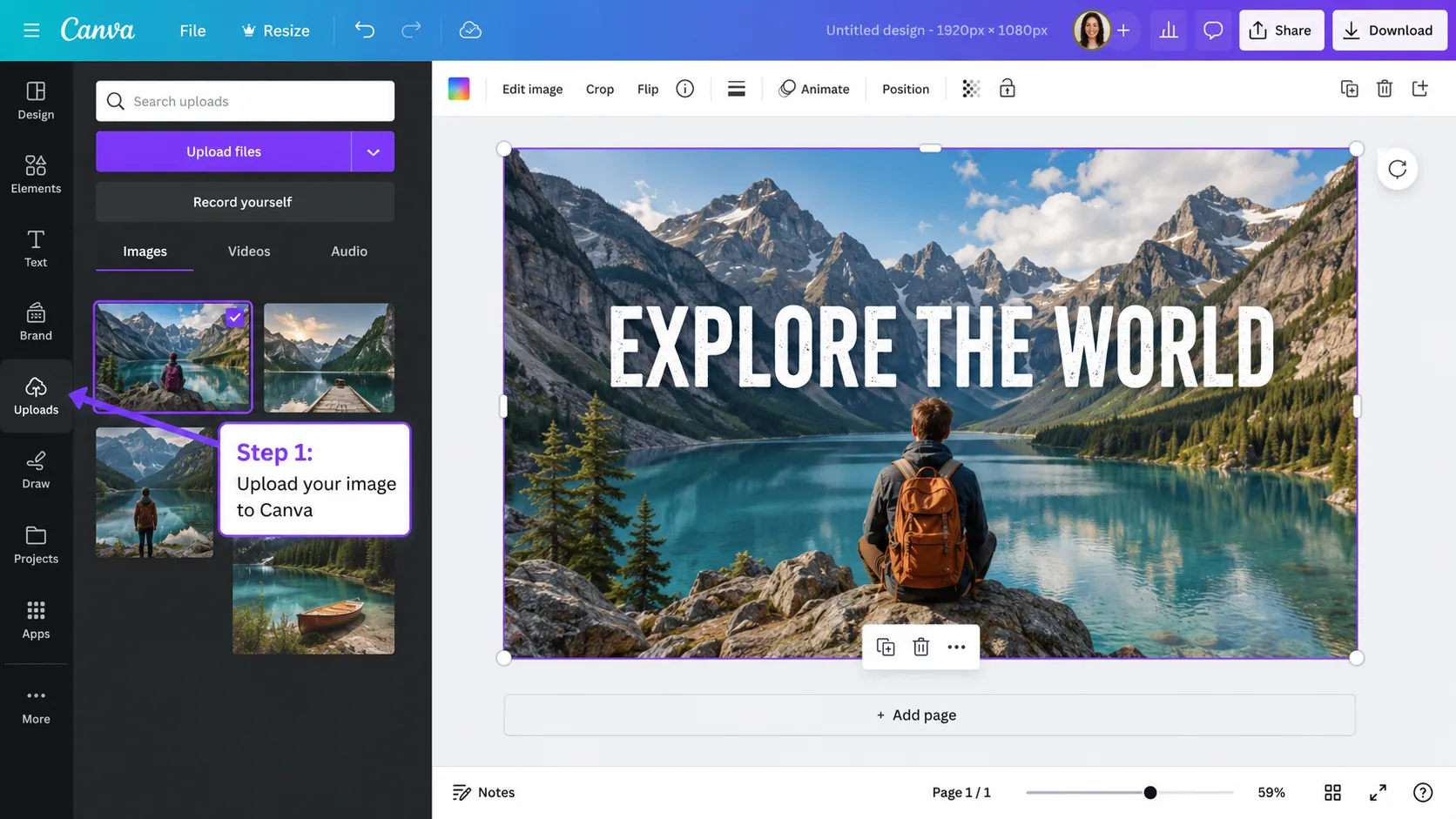
    Upload the image

    Open a design at the size you need, upload the source image and place it on the canvas.

    Step 1 uploading an image into Canva
  2. 02

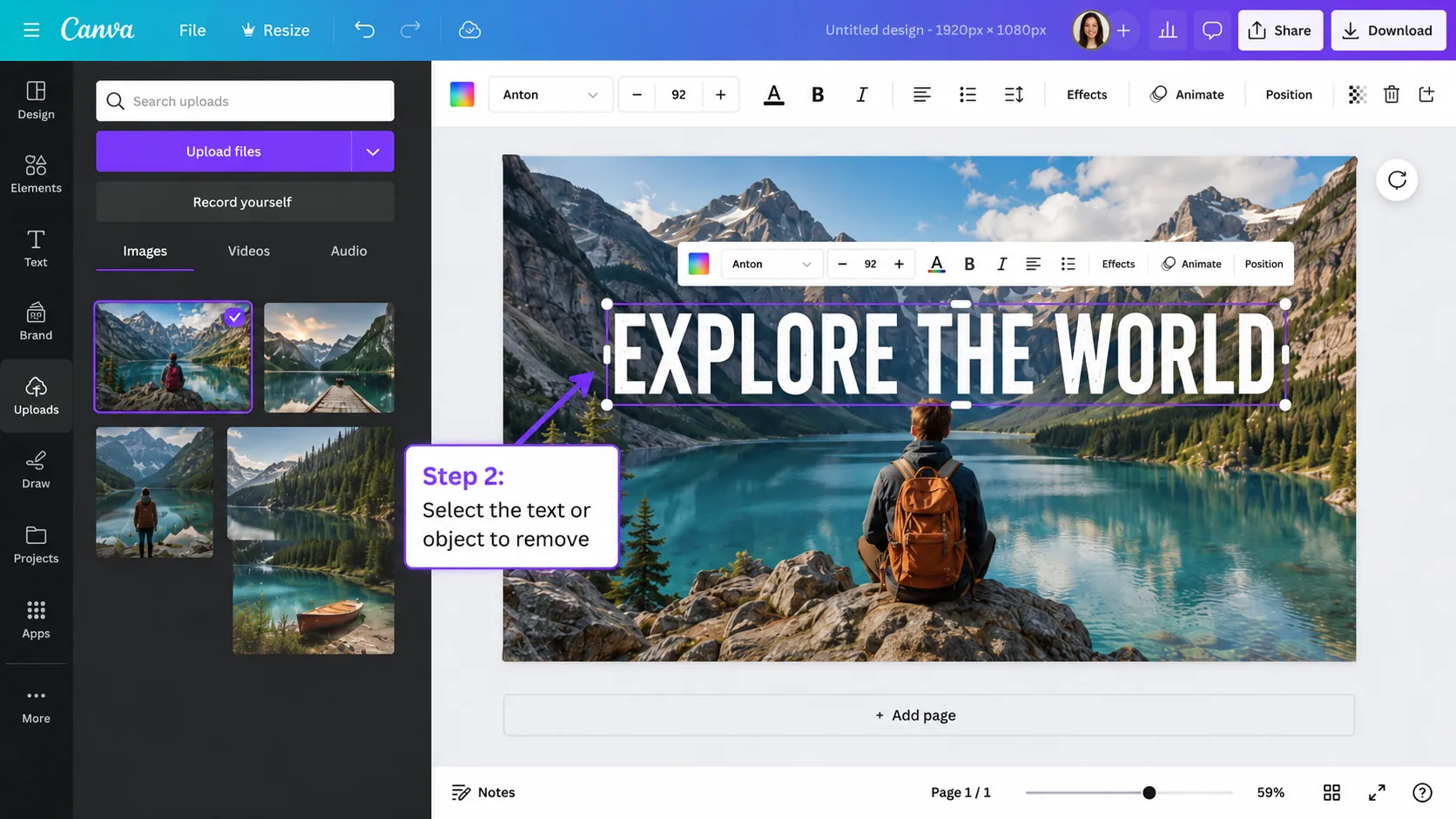
    Check whether the text is editable

    Click the words. If Canva selects a text box, delete that layer. If it selects the whole image, continue with image editing.

    Step 2 checking whether the Canva text is an editable object
  3. 03

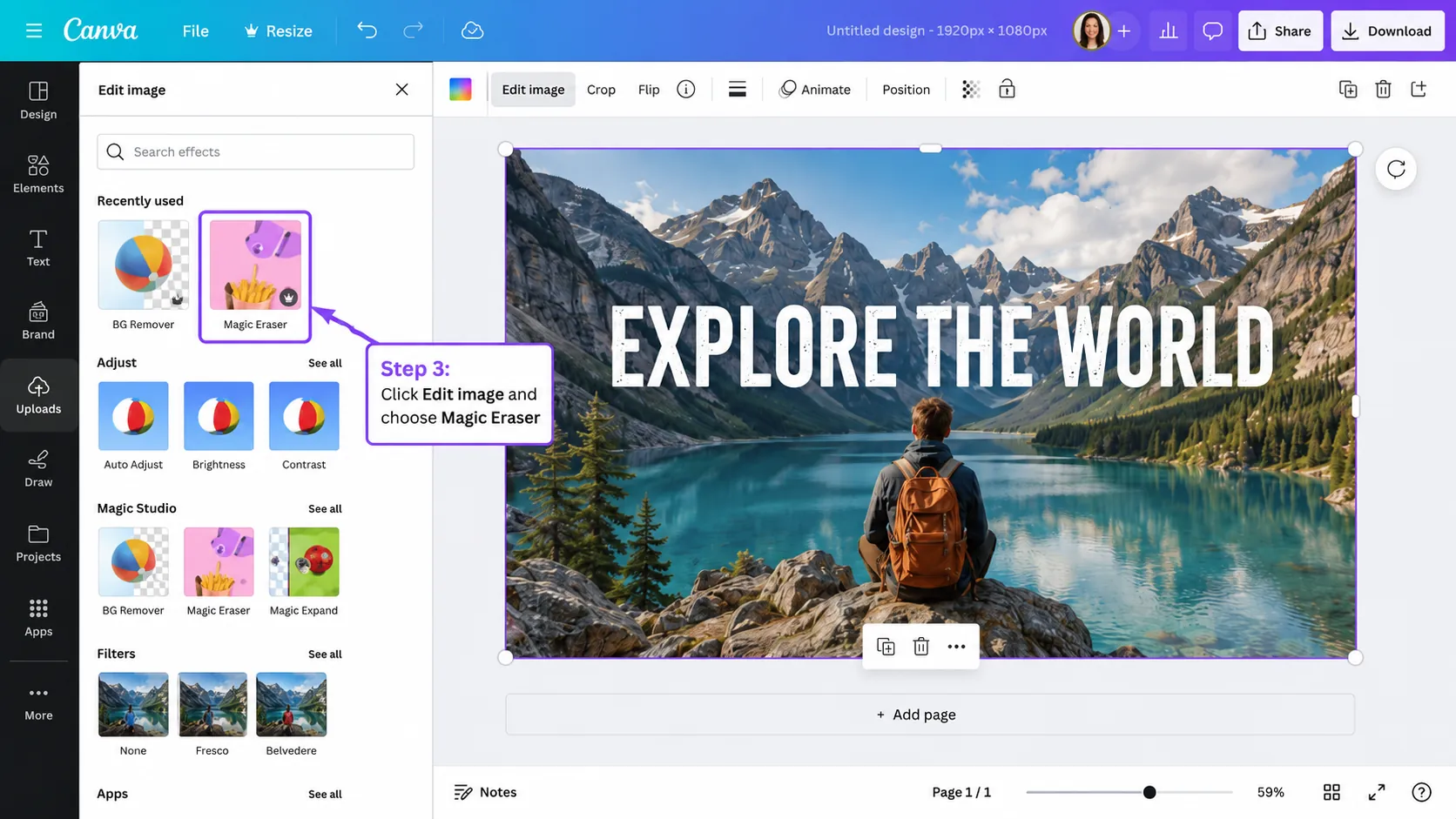
    Open Magic Eraser

    Select the image, choose Edit image and open Magic Eraser. Availability can depend on the current Canva plan and interface.

    Step 3 choosing Magic Eraser in Canva Edit image tools
  4. 04

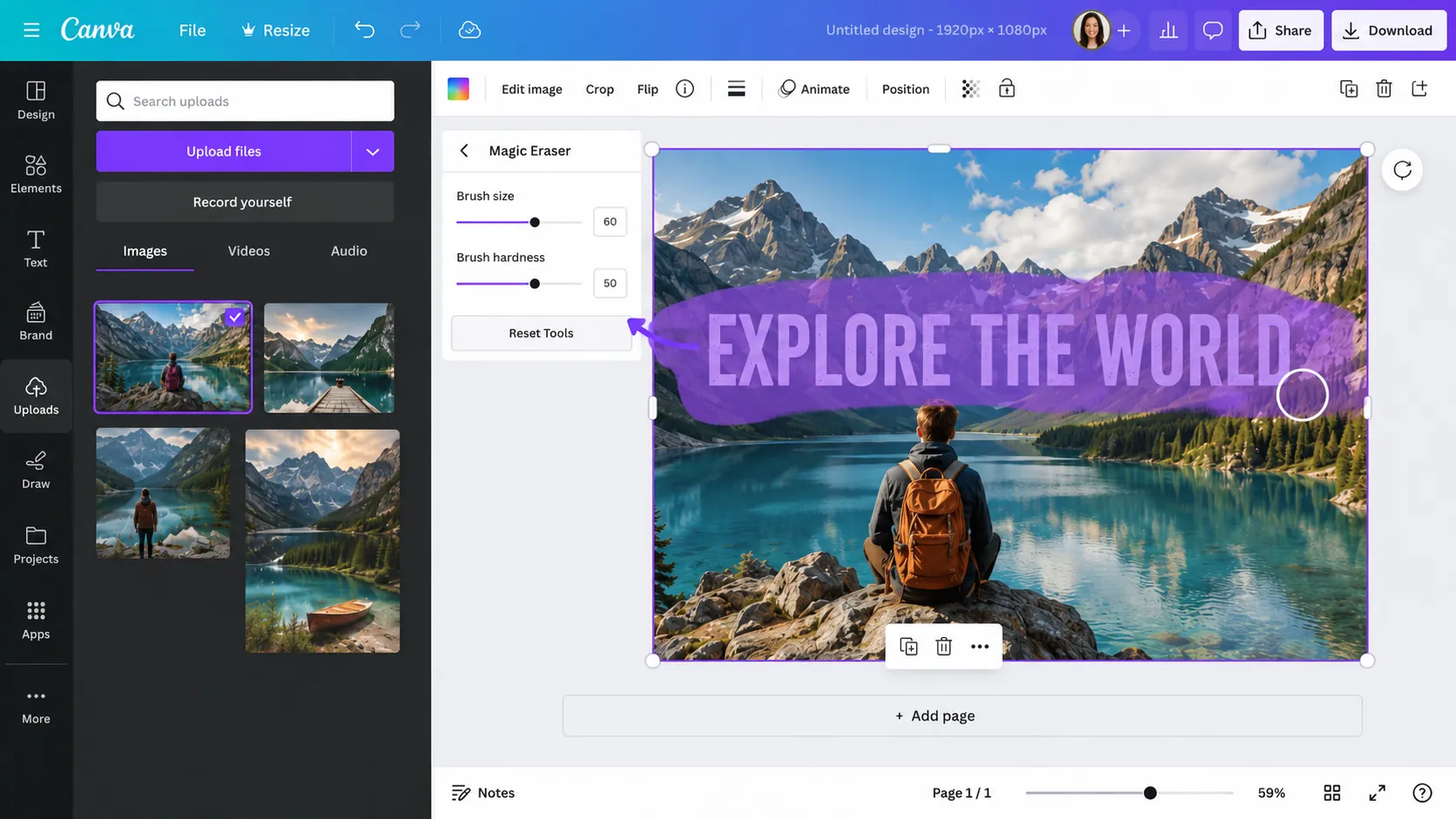
    Brush over every letter

    Set a brush slightly wider than the strokes and cover the complete text, including shadows and outlines.

    Step 4 brushing over text with Canva Magic Eraser
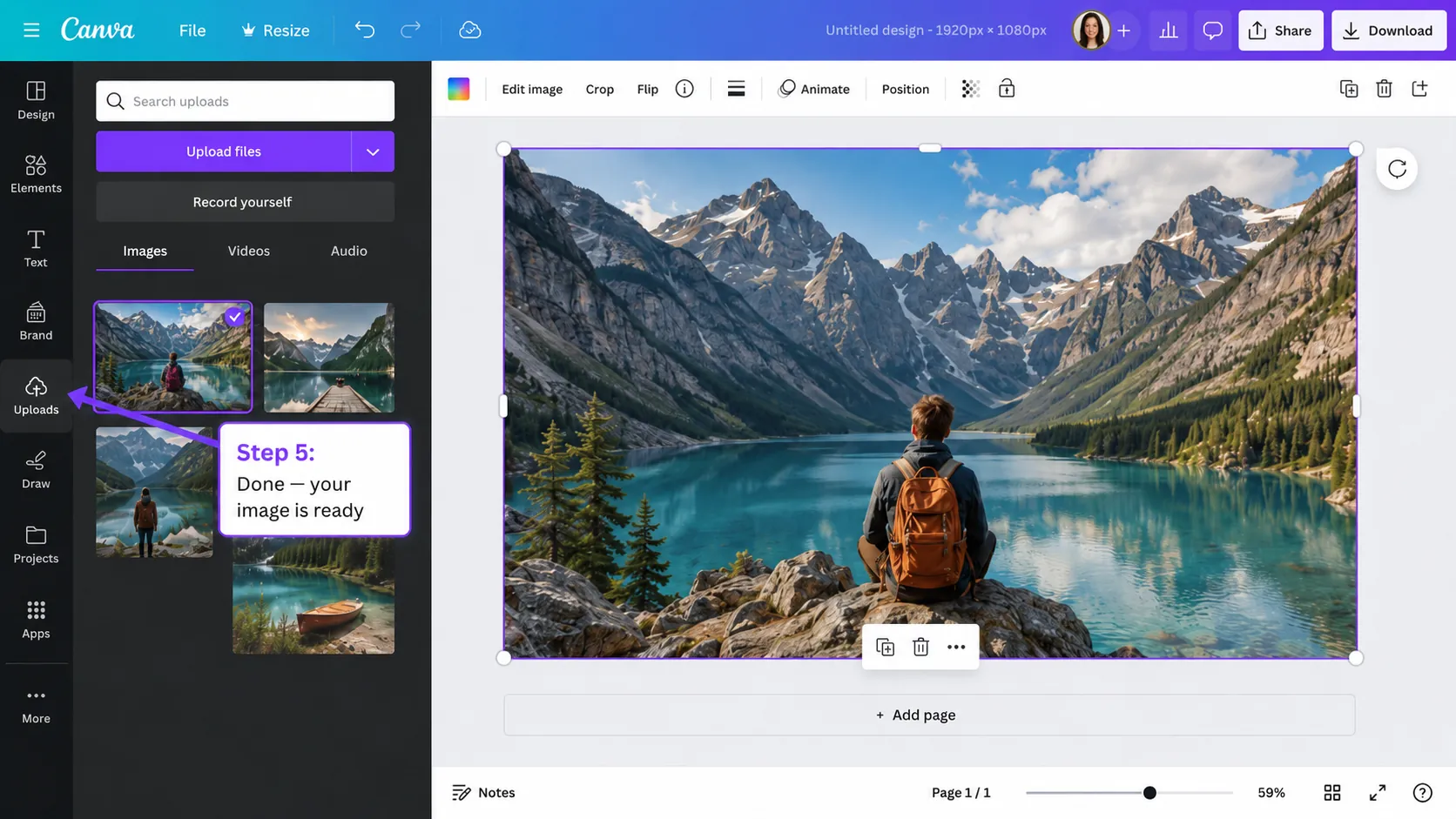
  5. 05

    Review and download

    Inspect the repaired area, undo and retry if needed, then download the finished design in the required format.

    Step 5 finished Canva design after removing text

When RemoveText is the shorter route

Canva is ideal when the wording remains an editable layer. When the text is flattened into an imported photo, RemoveText gives you a dedicated cleanup flow without creating a design, opening image effects and brushing over every caption.

  • Target all visible text or identify selected words in writing
  • Add up to 10 images to one processing batch
  • Keep the source aspect ratio after cleanup
  • Use 30 starting credits to test up to 3 images
Try RemoveText

Download the clean image, then bring it back into Canva if you want to add new editable copy.

Before and after comparison showing text removed from a product image
One focused workflow for automatic and selective text removal

Editable Canva text is different from image text

A Canva text element sits above the image and can be removed without changing the photo. Flattened text is already part of the uploaded pixels, so Canva has to estimate what should replace it.

Before using an eraser, click the wording once and check the top toolbar. Font and text controls indicate an editable layer. Image controls indicate the words are baked into the image.

Make Magic Eraser results more consistent

Erase one connected text area at a time and include outlines or shadows. On mountains, faces and architecture, use a smaller brush near important edges.

If the fill changes too much of the composition, undo and work in shorter strokes. A dedicated AI text remover is another option when there are many separate labels or captions.

  • Keep a duplicate Canva page before editing
  • Use the original-resolution upload
  • Review the output at 100 percent before download

FAQ

Questions about this workflow

Can I delete text from a Canva design?+

Yes, when it is an editable text element. Select the text box and delete it. Flattened words inside an image require Magic Eraser or another image cleanup tool.

Where is Magic Eraser in Canva?+

Select an image, open Edit image and look for Magic Eraser. Its location and availability may vary with Canva interface updates and account plan.

Can Canva restore the background behind text?+

Magic Eraser generates a replacement from nearby content. Simple sky and landscape areas are easier than faces, fine type or complex repeating patterns.

What should I do if the text is not selectable?+

That means the text is probably flattened into the image. Use an erasing feature or upload the file to a dedicated text removal tool.

AI image cleanup

Clean the words from your own image

Upload a supported image, target all text or selected words and review the reconstructed background.

Upload an image